How to Use AI in Photoshop for Retouching and Photo Restoration
By Mia Pham - Digital Marketing & Growth Strategy Lead, Pixel Commerce Studio
December 9, 2025
Restore and retouch photos instantly. Learn how to use AI in Photoshop to repair old photos, remove blemishes, and fix imperfections with powerful new tools.
Master AI in Photoshop for expert portrait retouching and seamless photo restoration.
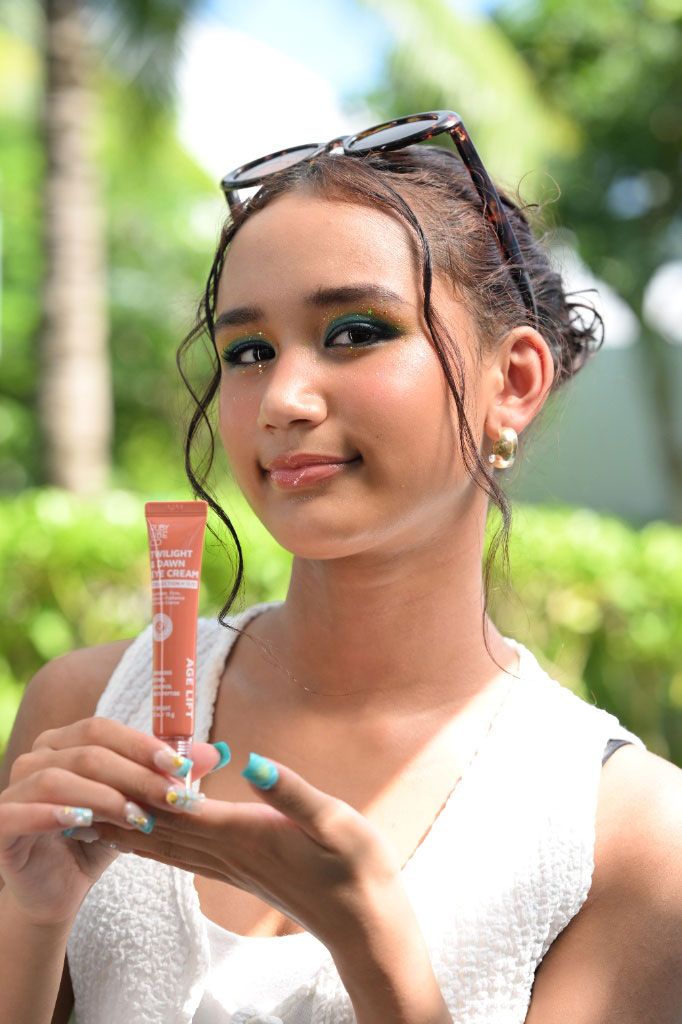
AI Photoshop retouching enhances portrait details for professional, flawless commercial photo results.
AI for Flawless Photo Retouching
Learning how to use AI in Photoshop has revolutionized the art of photo retouching and restoration. Traditionally, this process was meticulous and time-consuming, requiring a steady hand and a deep understanding of tools like the Clone Stamp and Healing Brush. Now, however, AI-powered features make it faster and more accessible than ever before. Consequently, you can achieve professional-quality results in a fraction of the time, even if you are a beginner.
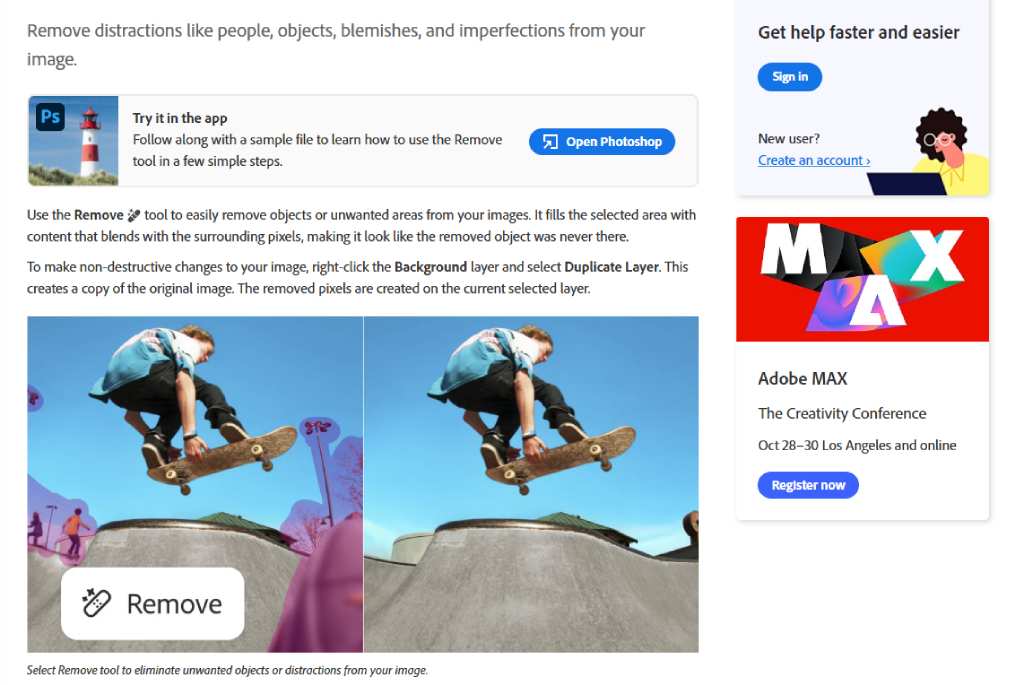
Screenshot of the Canva Photo Editor promotional page, illustrating the industry-wide trend of AI simplifying complex photo manipulation.
First and foremost, Generative Fill is a powerful tool for repairing old or damaged photos. You can select a torn or missing section of a photo, and the AI will intelligently fill in the gap, matching the surrounding content. In addition, you can use it to remove scratches, creases, and other imperfections with surprising accuracy. For example, you can select a faded area and describe what you want to generate in its place, like "a clear blue sky," and the AI will do the rest.
Use Photoshop AI to speed up complex photo retouching and historical photo restoration tasks.
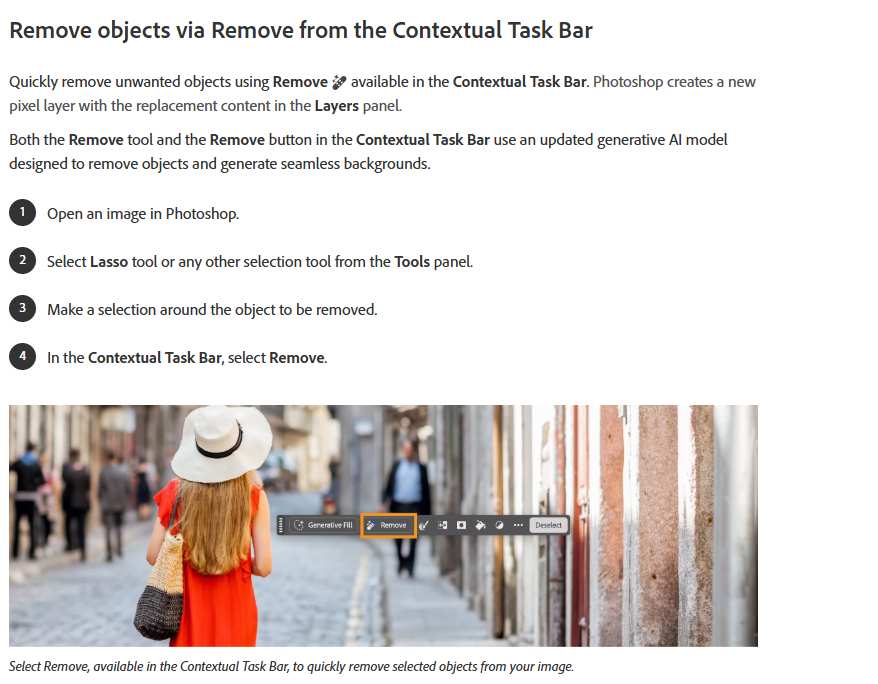
Next, the Remove Tool , which is enhanced with AI, is perfect for quick and easy cleanups. It can intelligently identify and remove small distractions like wires, blemishes, and unwanted people from your photos. You simply brush over the object you want to remove, and the AI does the rest. Most importantly, this tool is fantastic for saving time on minor edits that would otherwise require careful and time-consuming work. Therefore, understanding how to use AI in Photoshop with the Remove Tool can drastically speed up your workflow.
Stay Ahead — Join the Pixel Insider List
Want more strategies on marketing, branding, technology, AI tools, or eCommerce growth?
Subscribe to get:
Weekly insights on marketing & conversion strategy
AI tools, automation guides & step-by-step tutorials
Free access to webinars, handouts & industry templates
Early invites to Pixel workshops & live training sessions
Use the new AI Photoshop tools to master retouching and digital photo restoration. Insight by Kimmie Tran — Senior Graphic Design Specialist, Pixel Commerce Studio
Furthermore, Generative Fill can also be used for more creative retouching. For instance, if a photo has a distracting object in the background, you can select it and use a prompt to replace it with something more aesthetically pleasing, like "a blurred garden." The AI will generate a new background element that fits the context of the image. As a result, you can subtly enhance your photos and guide the viewer's attention to the main subject.
Utilize AI tools in Photoshop to instantly remove unwanted objects for quick photo retouching.
Finally, the beauty of these AI features is that they are non-destructive. Every AI-generated change is placed on a separate layer, complete with a layer mask. This gives you complete control over the edits, allowing you to fine-tune the results or revert to your original image at any time. As these examples show, AI in Photoshop is a powerful assistant for anyone looking to restore and perfect their photos with precision and speed.
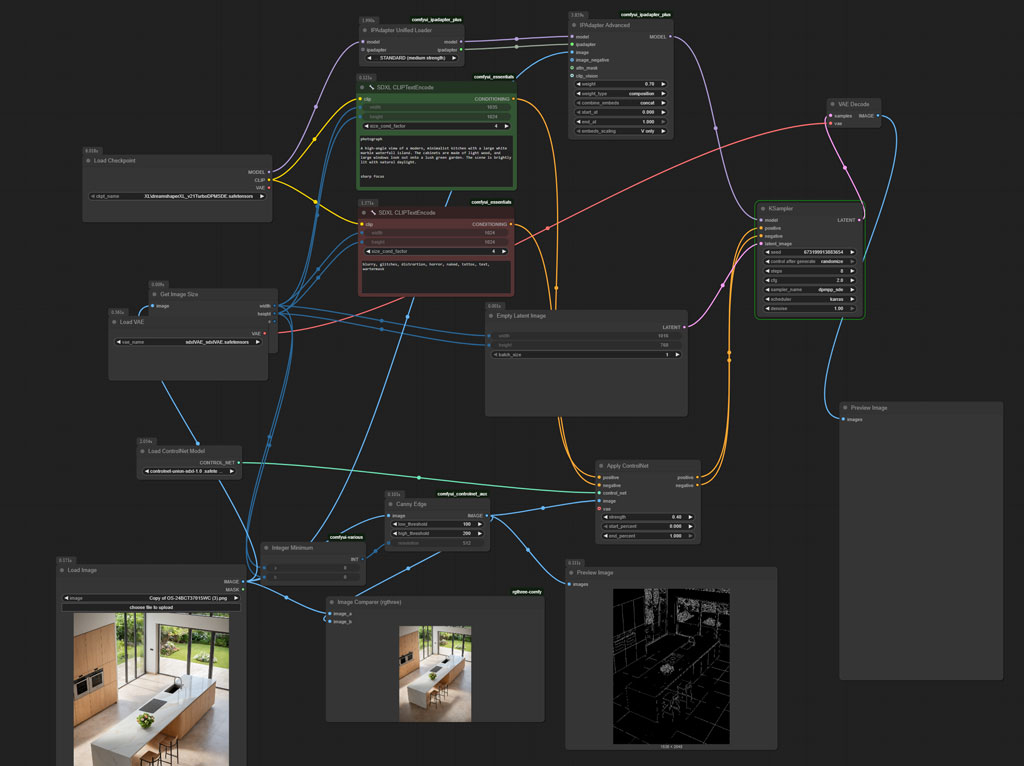
Visualize the AI workflow behind modern Photoshop tools for photo restoration and retouching. ComfyUI Image to Image Workflow. Insight by Khoa Vu — Architecture & AI Visualization Manager, Pixel Commerce Studio