A Beginner's Guide: How to Use AI in Photoshop
By Lucas VuongDigital Marketing & Growth Strategy Lead, Pixel Commerce Studio
December 10, 2025
New to Photoshop's AI? This beginner's guide walks you through the essential tools like Generative Fill and Generative Expand, making powerful image editing simple.

Getting Started with Photoshop AI
If you are new to Adobe Photoshop or just new to its AI features, learning how to use AI in Photoshop can seem daunting. However, Adobe has made its AI tools incredibly intuitive, even for beginners. By understanding a few core features, you can immediately begin to harness the power of AI to create stunning images. Furthermore, these features are designed to simplify complex tasks, allowing you to achieve professional-looking results with minimal effort.
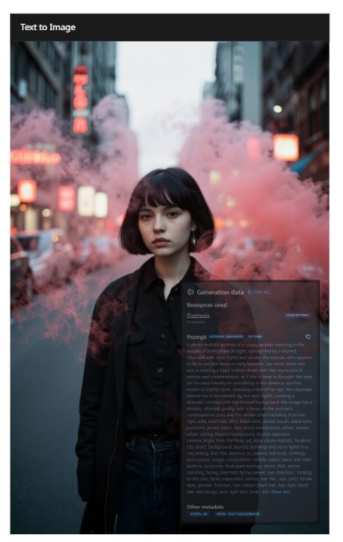
First and foremost, make sure you have the latest version of Photoshop. The AI features, powered by Adobe Firefly, are constantly being updated, so it is important to have the most recent version to access all the new tools. After you open a new or existing image, you will notice a "Contextual Task Bar" that appears whenever you make a selection. This taskbar is your key to accessing the AI tools.
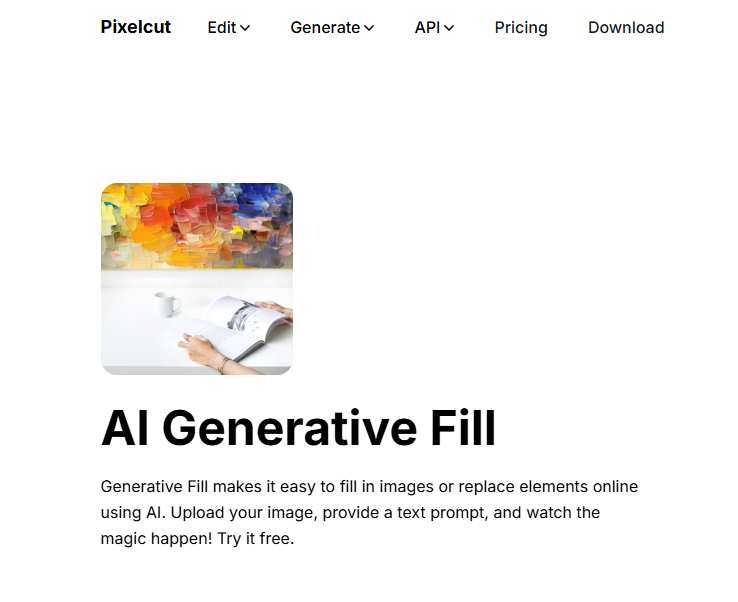
Next, a great starting point is the Generative Fill feature. Use the Lasso Tool or any other selection tool to select an area of your image. A taskbar will appear with a "Generative Fill" button. You can then type a text prompt to describe what you want to add to that area. For example, if you have a picture of a park, you can select an empty spot and type "a picnic blanket with a basket of food." The AI will then generate a new object that blends in with your image. Most importantly, it gives you three variations to choose from.
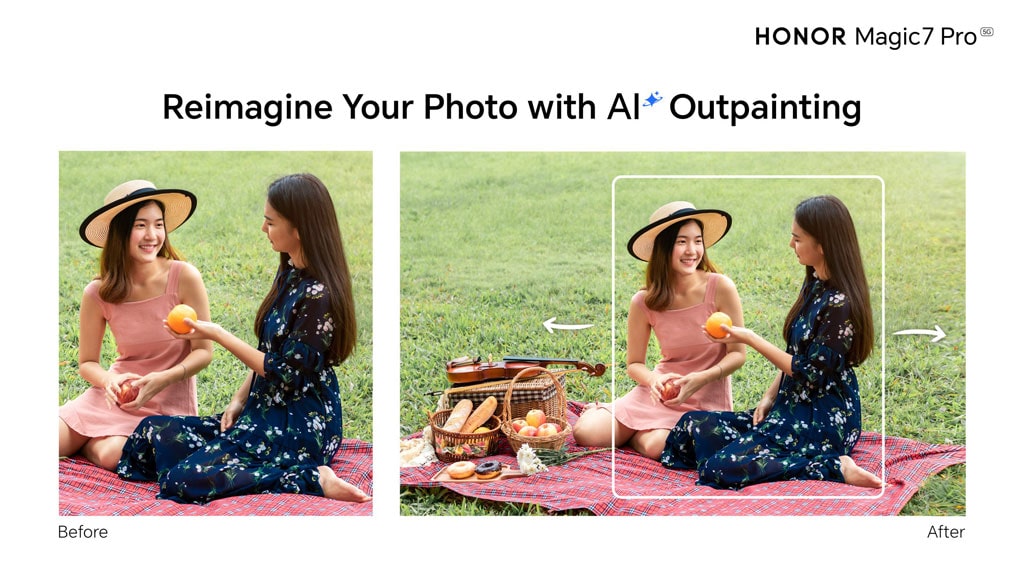
Furthermore, another essential tool is Generative Expand. This feature is perfect for resizing your images. Use the Crop Tool and drag the handles to expand the canvas beyond the original borders. The taskbar will then show a "Generative Expand" button. Clicking this button will automatically fill in the blank space with content that seamlessly matches your original photo. This is incredibly useful for changing a landscape photo to a portrait orientation, for example.
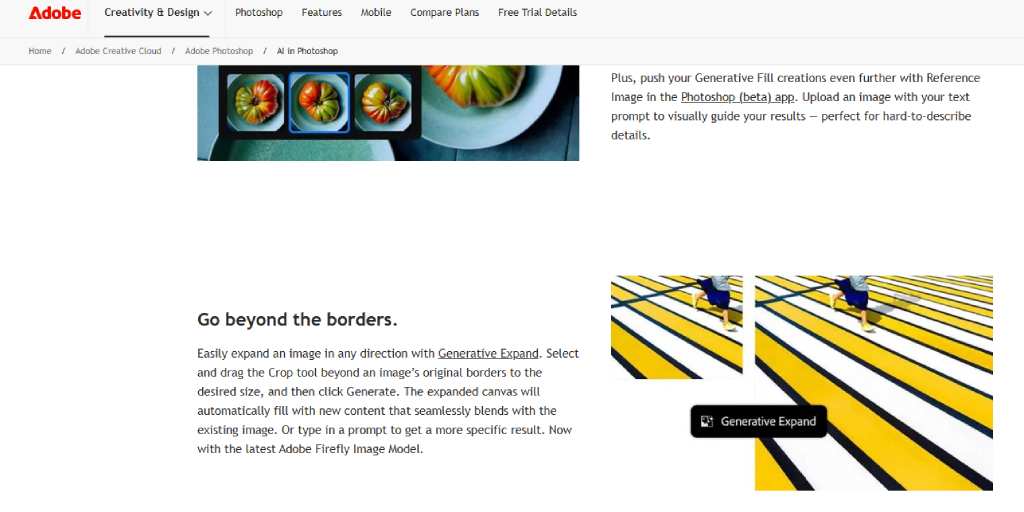
Finally, the beauty of these AI tools is that they are non-destructive. They work on separate layers, so you can always go back and adjust or delete the AI-generated content without affecting your original image. As these examples show, learning how to use AI in Photoshop is all about experimenting with these simple, yet powerful, tools to see what you can create.
Stay Ahead — Join the Pixel Insider List
Want more strategies on marketing, branding, technology, AI tools, or eCommerce growth?
Subscribe to get:


Like This Blog? Explore More from Pixel Commerce Studio
Dive into more insights across our most popular categories: