How to Use AI in Photoshop for Seamless Compositing
By Oscar PhamDigital Marketing & Growth Strategy Lead, Pixel Commerce Studio
December 24, 2025
Unlock professional compositing with AI. This guide on how to use AI in Photoshop shows you how to create realistic, blended images and scenes with Generative Fill.

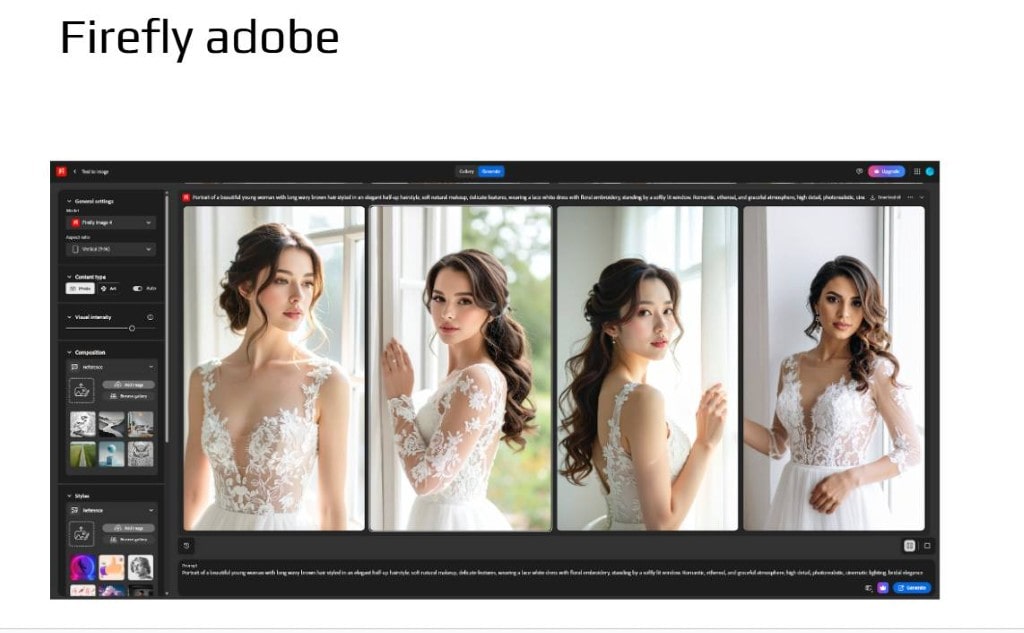
AI in Photoshop: A New Era of Image Editing
Learning how to use AI in Photoshop has completely changed the game for image compositing. In the past, creating a realistic composite required advanced skills in masking, color correction, and blending. Now, however, Adobe's AI features, powered by Firefly, automate much of this complex process. Consequently, this allows both beginners and experienced designers to create stunning, believable images with ease. Furthermore, these AI tools make your workflow significantly faster, freeing you up for more creative tasks.
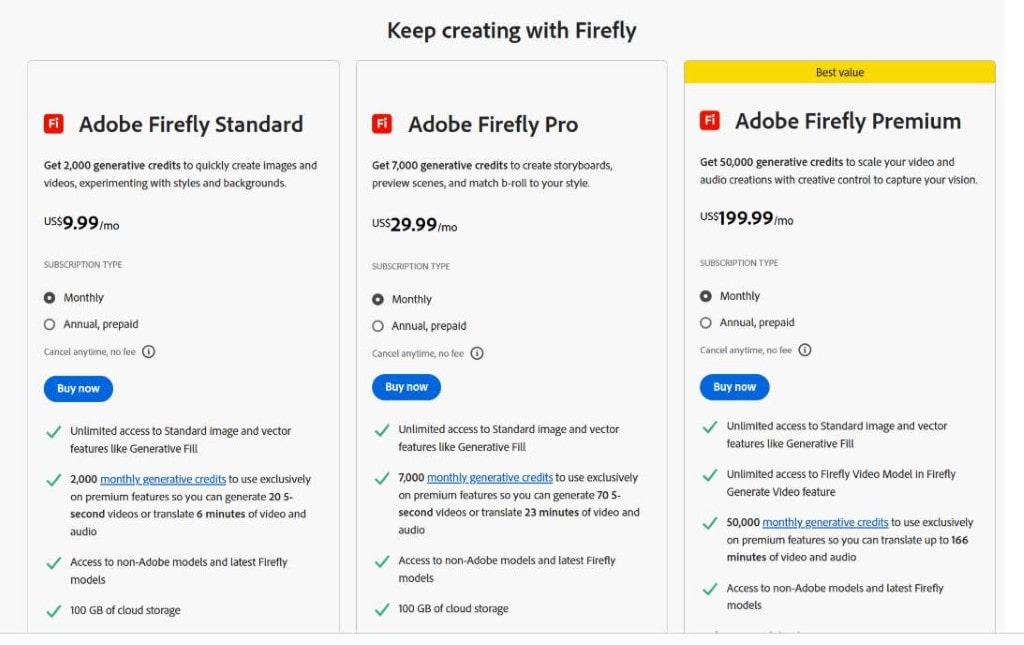
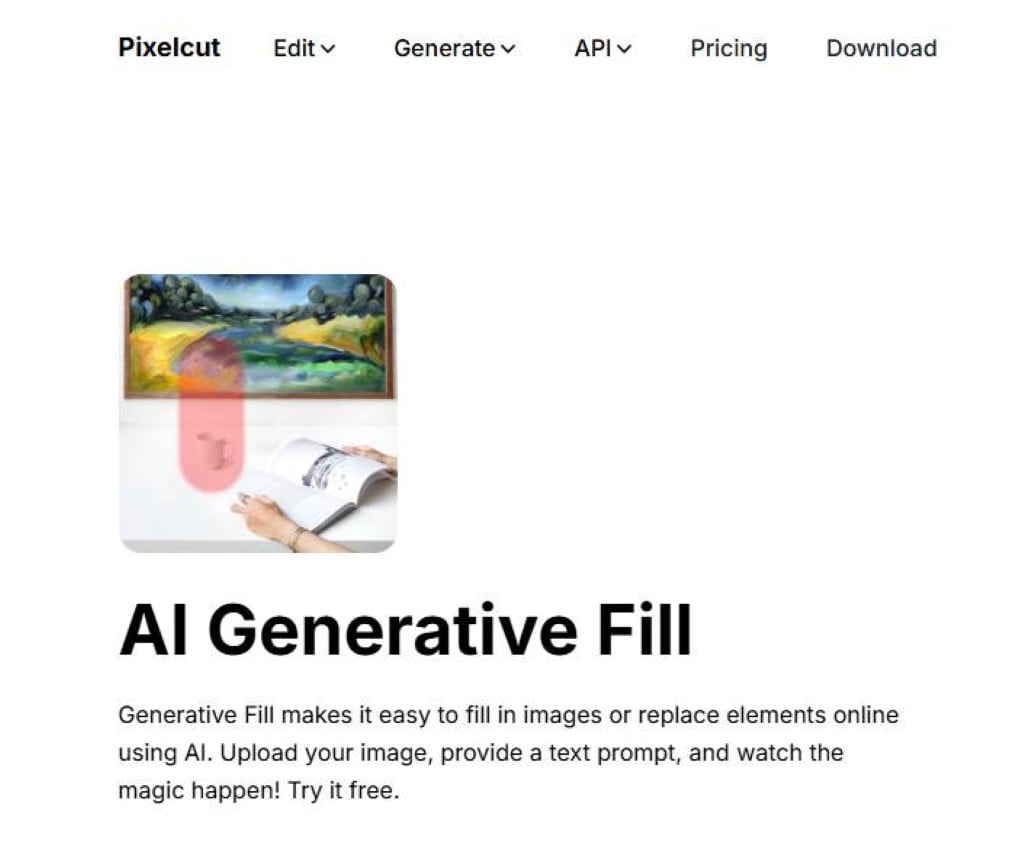
First and foremost, the most powerful tool for compositing is Generative Fill. This feature allows you to add new objects to an image simply by typing a text prompt. For example, you can select an empty space in a photograph and type "a rustic wooden table with a vase of flowers." The AI will then generate a new object that matches the lighting, perspective, and style of your original image. In addition, it creates the new content on a new layer, which is non-destructive and easy to edit.

Next, Generative Fill is also excellent for replacing backgrounds. After you select the main subject of your photo, you can invert the selection to isolate the background. You can then use Generative Fill to replace the original background with a new one. For instance, you could place a person standing in a studio into a vibrant outdoor scene. Most importantly, the AI will match the lighting and shadows, ensuring the composite looks incredibly realistic. Therefore, understanding how to use AI in Photoshop for background replacement can save you hours of manual work.
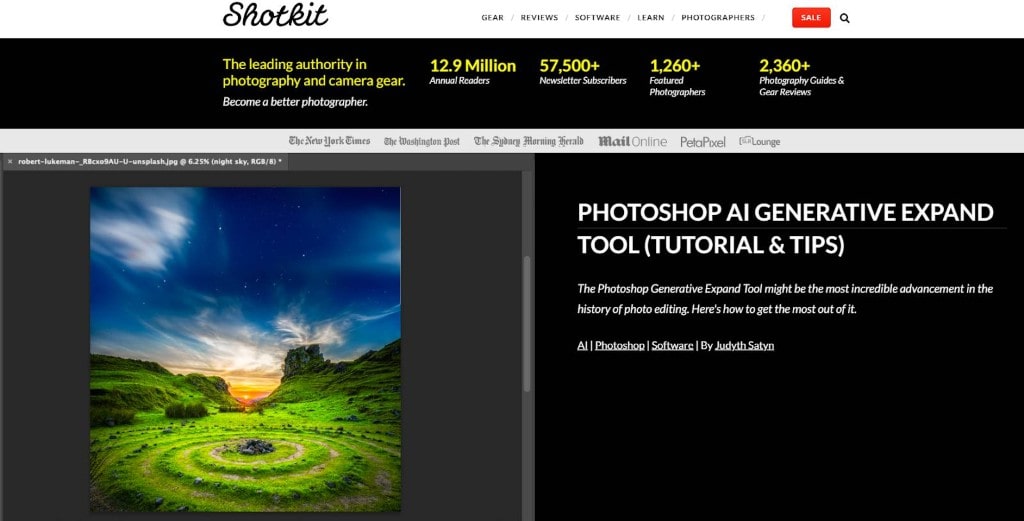
Furthermore, a key feature is the ability to easily extend an image. With Generative Expand, you can use the Crop tool to drag beyond the edges of your original photo. When you click "Generate," the AI will seamlessly fill in the blank space with new content that blends naturally with the existing image. This is incredibly useful for changing aspect ratios or creating more room for text and other design elements. As a result, you can adapt your images for different platforms, such as social media or print, in a matter of seconds.
Finally, the new AI tools in Photoshop are all about making the tedious parts of editing quick and simple. They allow you to rapidly iterate on ideas and explore creative possibilities without getting bogged down in technical details. As these features show, knowing how to use AI in Photoshop is now a fundamental skill for anyone serious about image editing and design.
Stay Ahead — Join the Pixel Insider List
Want more strategies on marketing, branding, technology, AI tools, or eCommerce growth?
Subscribe to get:


Like This Blog? Explore More from Pixel Commerce Studio
Dive into more insights across our most popular categories: