How to Use AI in Photoshop to Remove or Replace Objects
By Haven Young StoreyBrand Development & Content Strategy Editor, Pixel Commerce Studio
December 18, 2025
Get rid of distractions instantly. This guide on how to use AI in Photoshop shows you how to seamlessly remove unwanted objects and people or replace them with new content.


Quick Edits: AI for Object Removal and Replacement
Learning how to use AI in Photoshop for object removal and replacement is a game-changer for photographers and graphic designers. Previously, this process often involved using complex tools like the Clone Stamp or Healing Brush, which required a high degree of precision. Now, however, AI automates these tasks with remarkable accuracy and speed. Consequently, you can clean up your images in a fraction of the time, leading to a much more efficient workflow.

First and foremost, the Generative Fill feature is the most powerful tool for removing objects. You can use any selection tool, like the Lasso or Rectangular Marquee tool, to select the object you want to remove. After making your selection, simply leave the prompt field blank and click "Generate." The AI will then analyze the surrounding pixels and intelligently fill in the selected area, making the object disappear as if it were never there. In addition, it does an excellent job of matching textures and patterns, especially on complex backgrounds like sand or grass.

Next, you can use a similar process to replace an object. For example, imagine you have a photo of a person holding a smartphone, but you want to replace it with a book. You can select the smartphone, then type "a large hardback book" into the prompt field. The AI will generate a new object that not only fits within the space but also matches the lighting and shadows of the original scene. Most importantly, it creates a new layer, so your original image remains untouched.
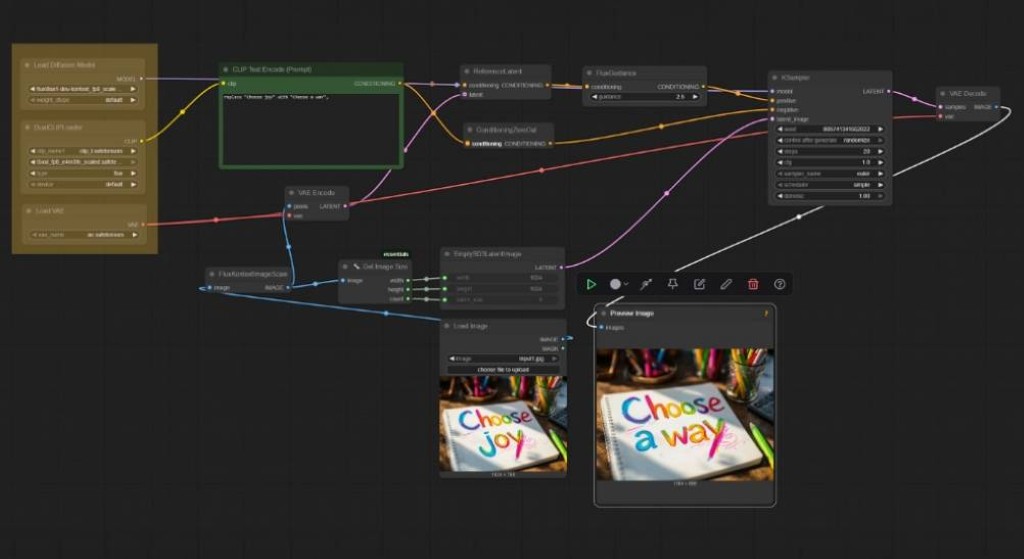
Furthermore, a less-known but equally useful tool is the Remove Tool, which has been enhanced with AI. This tool is perfect for removing small distractions like power lines, cables, or small blemishes. You simply brush over the object you want to remove, and the AI works its magic, filling in the space with the surrounding content. This is especially useful for quickly cleaning up a busy background without having to make precise selections. Therefore, understanding how to use AI in Photoshop with the Remove Tool can save you from a lot of meticulous, manual work.

Finally, the ability to remove and replace objects so easily opens up a world of creative possibilities. You can effortlessly transform a scene, experiment with different compositions, and clean up imperfections that would have been too time-consuming to fix manually. As these examples show, AI in Photoshop is an essential tool for anyone looking to perfect their images with minimal effort.

Stay Ahead — Join the Pixel Insider List
Want more strategies on marketing, branding, technology, AI tools, or eCommerce growth?
Subscribe to get:


Like This Blog? Explore More from Pixel Commerce Studio
Dive into more insights across our most popular categories: